Project & document management · v0.9 Betastill being refined

OSGA Platform.

Every project, every file, every person on it — in one place. OSGA is where an engineering, architecture or licensing office keeps its projects, the documents and drawings they produce, the meetings and emails around them, the work still to do, and the clients, councils and engineers involved. It runs on your own server and is licensed per user.

10
Tabs on every project, from files to meetings
3
Online-meeting services · Microsoft Teams, Zoom, Google Meet
4
Access levels · viewer to admin
37
Built-in guides, one click from any screen
What it fixes

The questions an office stops asking once OSGA is in.

“Which file is the current one?”

Every project file gets a consistent name and number. Documents and engineering plans keep their versions, revisions and sub-revisions; lists show only the newest, and older ones are one click away.

“Did I just overwrite your work?”

You check a file out to work on it, and it is locked to you until you check it back in. Two people can never save over each other. An administrator can release a stuck lock — and file the work that was in it.

“What did we agree with the client?”

Each project keeps an activity log and a Meetings & Notes tab. Emails with the project’s reference in the subject log themselves on it, so decisions don’t live in one person’s inbox.

“Who is coming to the site meeting?”

Meetings are created in OSGA: email invitations with calendar files, Microsoft Teams, Zoom or Google Meet links in one click, and the answers come back in — from the app or straight from the guest’s calendar.

“Who is doing what this week?”

A shared Workboard of tickets in To do, In progress and Done, for the whole office or one project. An engineering plan becomes a set of tickets in one step, and the calendar shows meetings and due dates side by side.

“Who is allowed to see this project?”

People see the projects they are assigned to, and nothing else. Assigning someone is how you give access; four roles decide who can view, work, set up or administer.

“Where is the standard detail, and the council’s by-law?”

A shared drawing library with DWG and DXF previews in the browser, and a legislation library per city council with PDFs that open on screen. Site photos, videos and 3D models sit on the project, grouped by tag.

“Where does this project stand?”

A one-click summary per project, notifications for what changes on your work, and screens that update by themselves as colleagues check files in and move tickets.

“Are we backed up, and are we licensed?”

Scheduled database and file backups to a network share or a second bucket. Closed projects move, compressed, to an archive — and come back if reopened. The license activates with your portal login.

See it in action

Screens from a running installation.

Example data from a demonstration office — the projects, clients and councils are made up, the software is not.

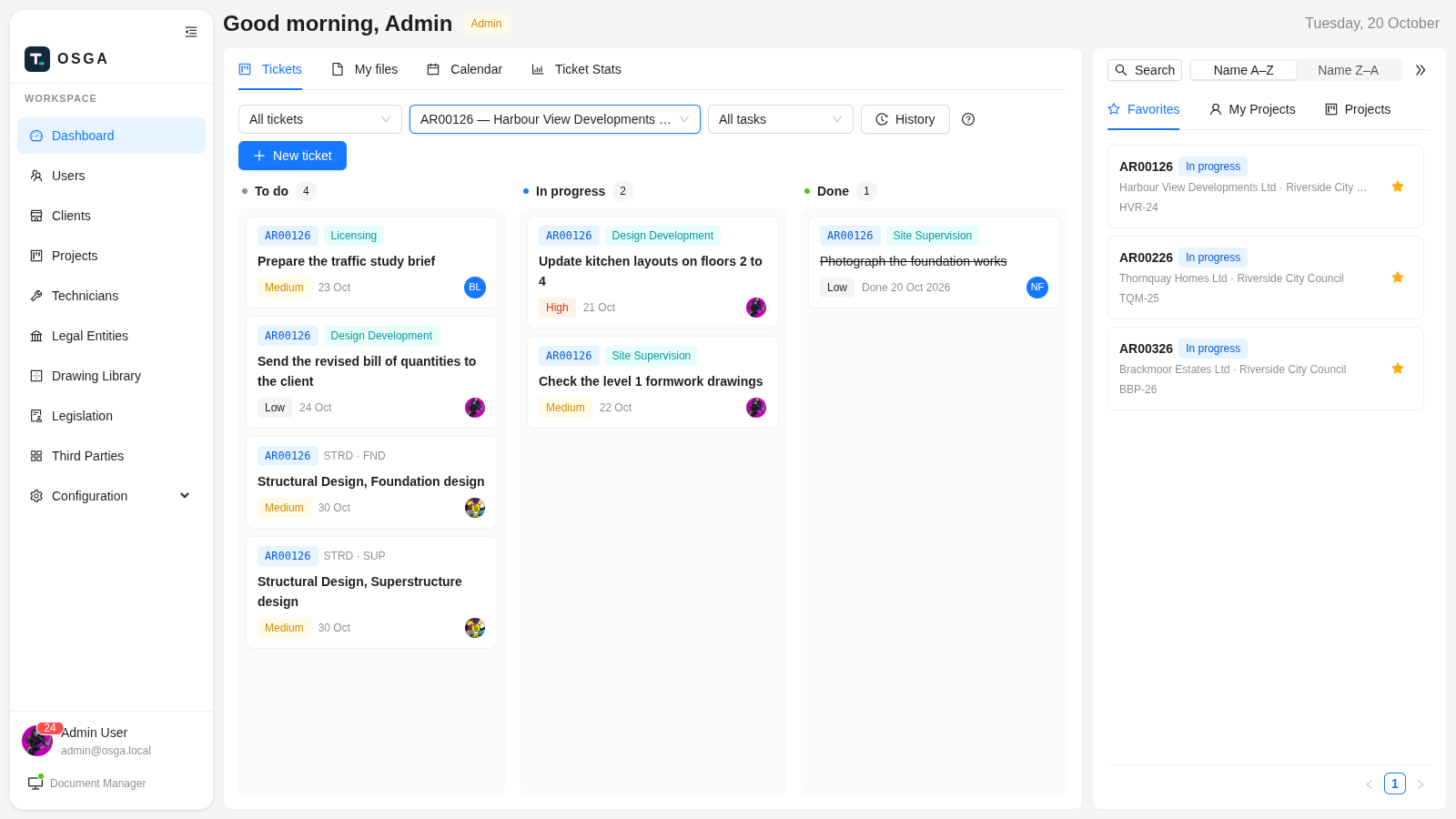
osga.local — Dashboard · Tickets
OSGA dashboard Workboard with tickets in To do, In progress and Done, and the projects rail

Your day at a glance — the shared Workboard opens first: every ticket in To do, In progress or Done, for you, a colleague or one project. Your favourite projects sit alongside.

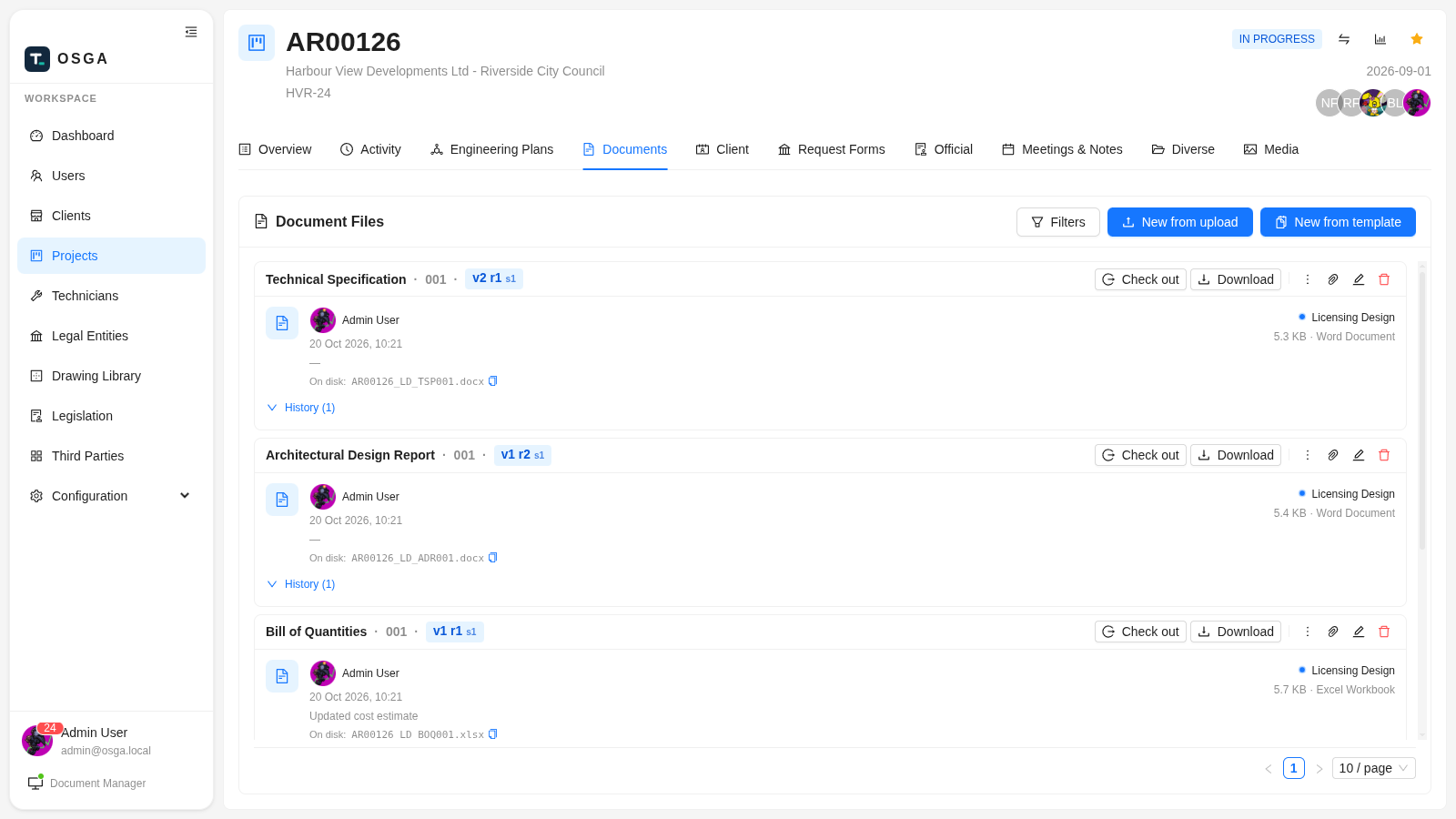
osga.local — AR00126 · Documents
OSGA project documents with version, revision and history

Documents with history — every document shows its version, revision and sub-revision; check out, download, or open earlier ones from the same row.

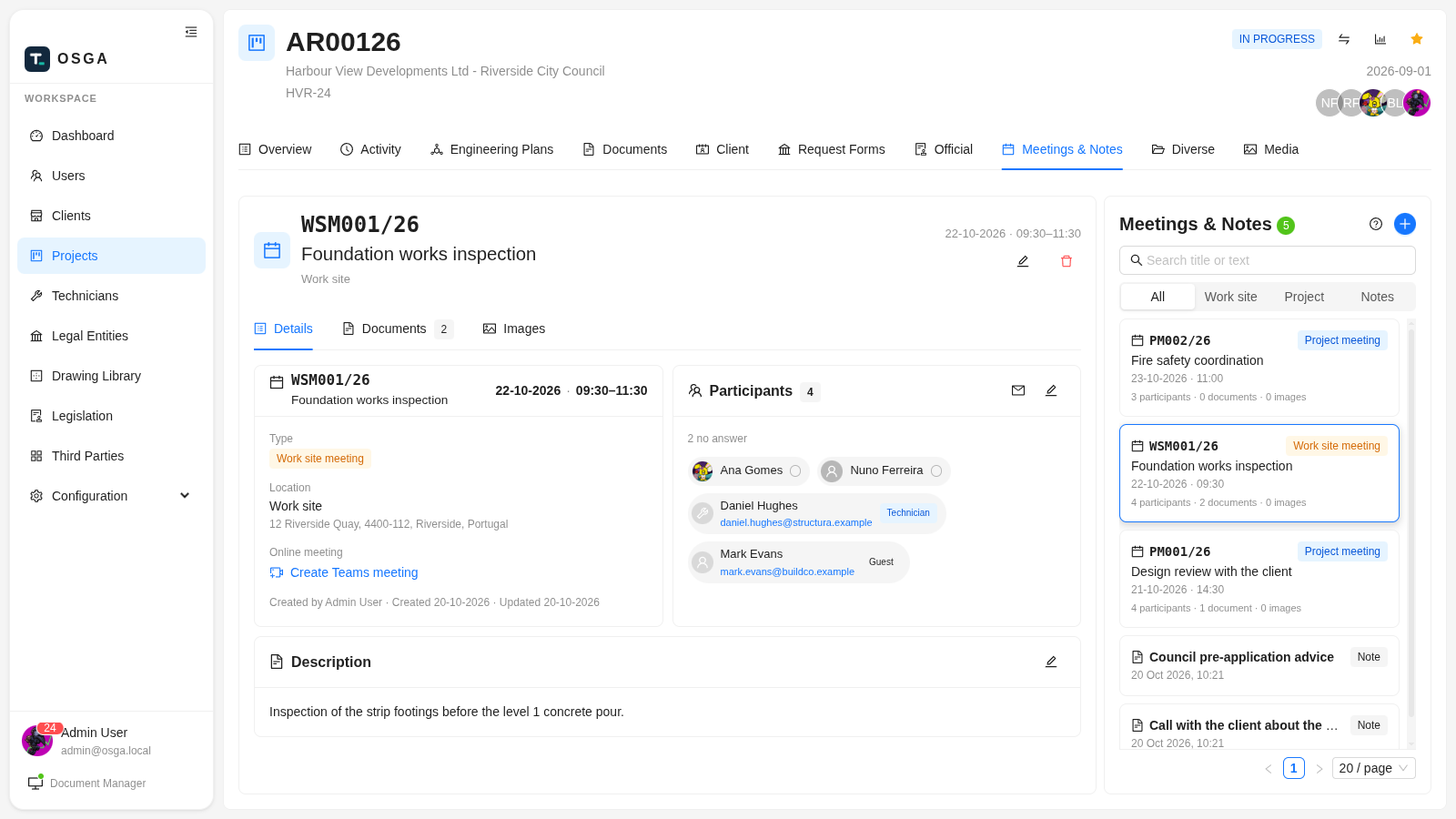
osga.local — AR00126 · Meetings & Notes
OSGA work-site meeting with its participants, answers and location, beside the list of meetings and notes

Meetings that run themselves — a numbered work-site meeting with staff, a technician and an outside guest. Invitations, online links and answers are all on the meeting.

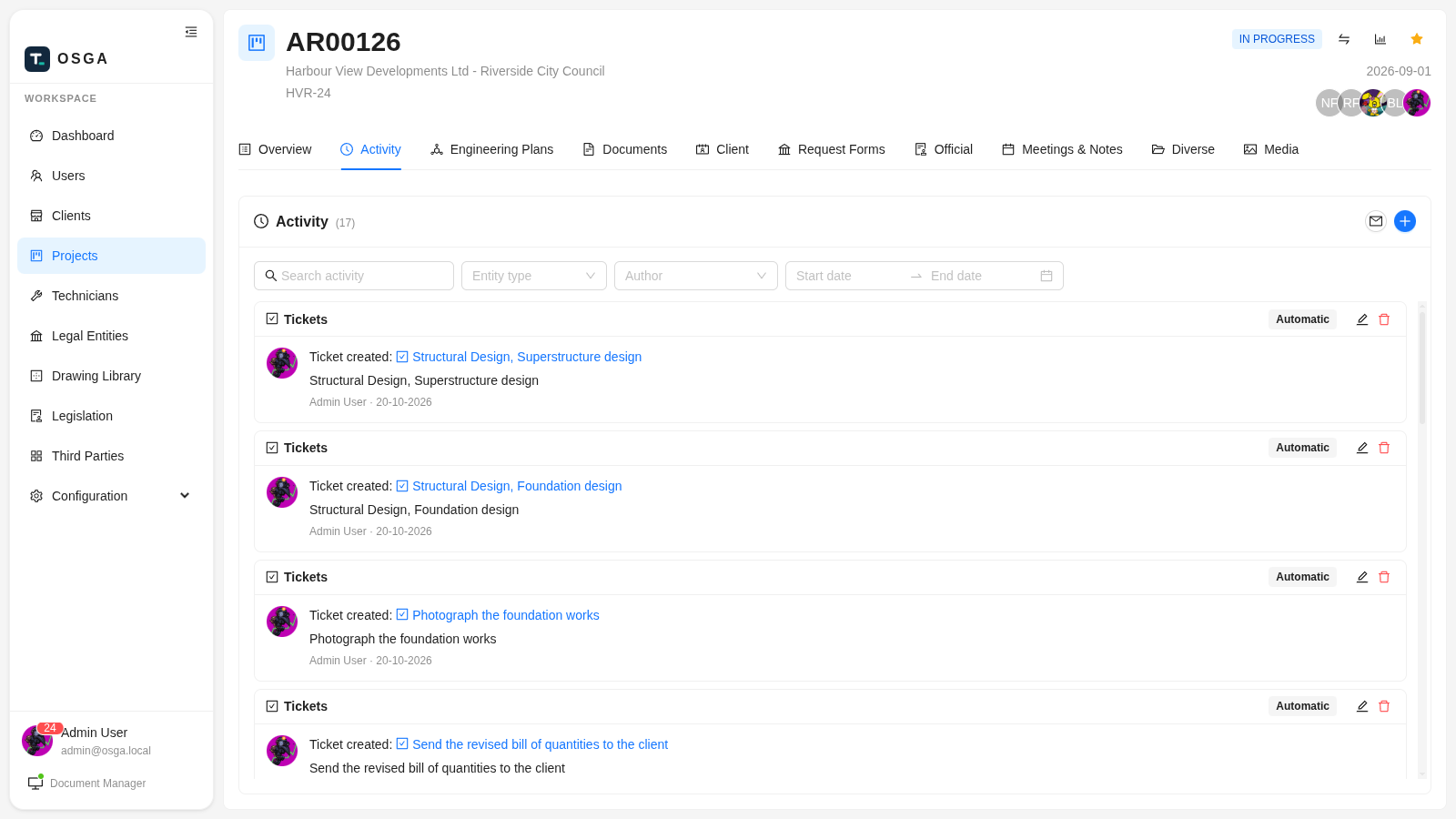
osga.local — AR00126 · Activity
OSGA project activity log with automatic entries

The project’s diary — manual entries, plus automatic ones for new files, meetings, tickets and emails that mention the project. Searchable by person, author and date.

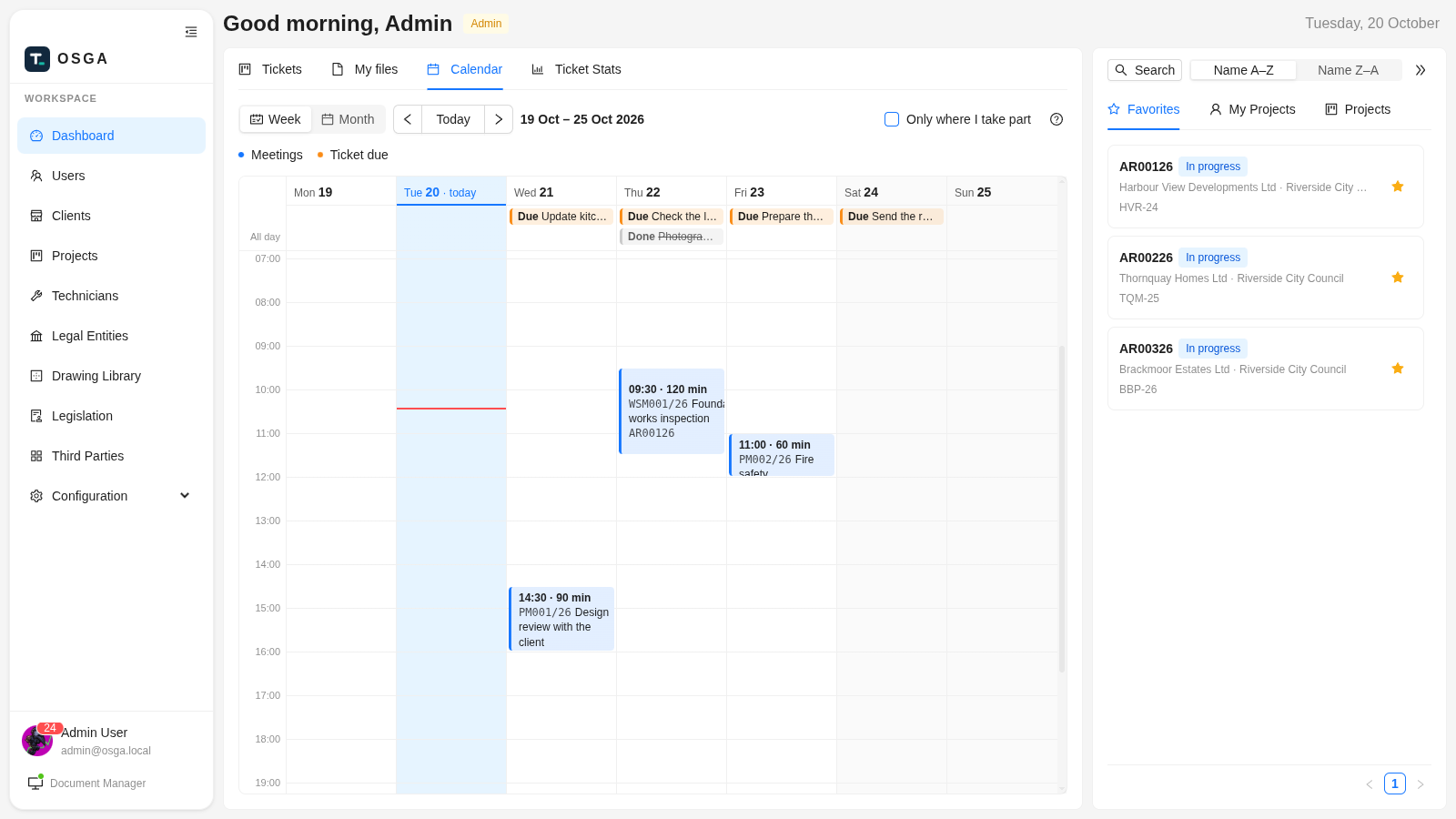
osga.local — Dashboard · Calendar
OSGA week calendar with meetings and ticket due dates

The week ahead — your meetings at their time, in your timezone, and ticket due dates in the all-day row. Switch to the month view to look further ahead.

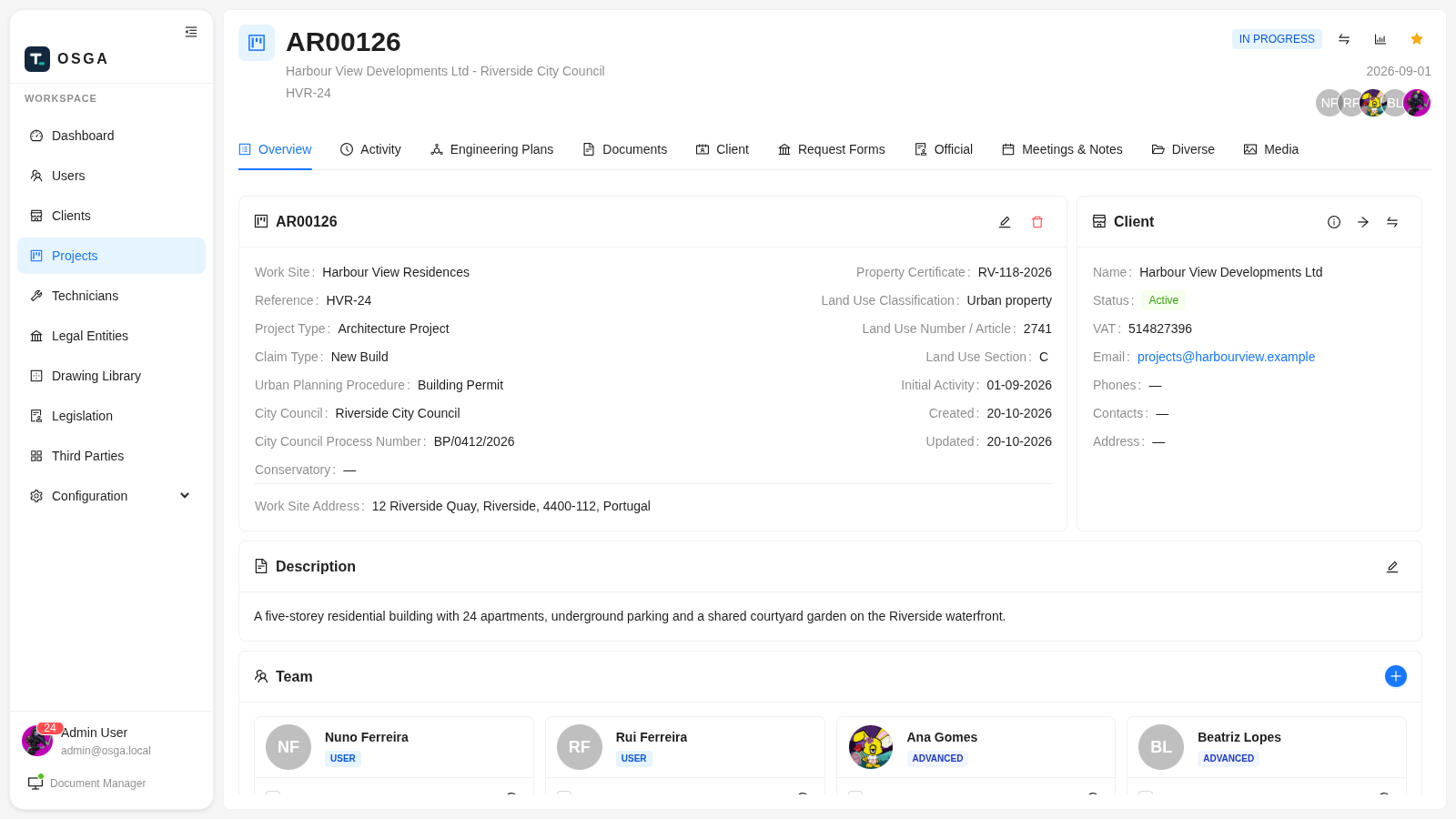
osga.local — AR00126 · Overview
OSGA project overview with details, client card, description and team

One home per project — client, city council, work site, land registry and team on the Overview; ten tabs hold everything else.

A project, start to finish

How the work flows through it.

01
Open the project

Pick the client, the project type, the claim type and the city council. OSGA gives it a reference code and assigns you to it.

02
Start from templates

Client documents, council request forms, meeting minutes and engineering-plan files are copied in from your templates — ready to work on, not blank.

03
Assign and plan

Add the colleagues who should see it — nobody else can, not even by guessing the link — and turn each engineering plan into tickets on the Workboard.

04
Work on files

Check out, edit on your own PC, check in. Each check-in is a new entry in the file's history; milestones are marked as new revisions or versions.

05
Meet and record

Invite to site meetings, log calls and emails, add site photos. Close the project and it turns read-only, its files archived — the whole story kept on it.

What it keeps track of

Everything an office deals with, and everything a project holds.

Who you work with

Clients & contactsTechnicians Legal entitiesCity councils Third partiesYour team Drawing libraryLegislation

What a project holds

DocumentsClient files Council filesOfficial files Engineering plansDiverse files Meetings & notesPhotos · video · 3D Activity logTickets Work-site & land registry

What you set up once

Project typesClaim types Planning proceduresTasks & file stages TemplatesEngineering plans Allowed file typesEmail & online meetings
Beyond the files

Meetings, email and the work still to do — on the project too.

OSGA works with the mailbox and the online-meeting service the office already has: Microsoft 365, Google Workspace or any SMTP/IMAP provider; Teams, Zoom or Google Meet.

Meetings & Notes

From invitation to minutes

  • Work-site and project meetings, numbered per project and year.
  • Email invitations with a calendar file; updates and cancellations go out by themselves.
  • Teams, Zoom or Google Meet links created in one click, moved with the meeting.
  • Answers come back in — from the app, or from the Accept button in the guest’s Outlook, Gmail or Apple Calendar. Bounced invitations are flagged.
  • Minutes from templates, photos from the day and short notes, kept with the meeting.
Email on the project

Decisions stop living in one inbox

  • An email with the project’s reference in the subject is logged on its activity, with sender and recipients.
  • Write from the project: recipients picked from its team, client, council and technicians.
  • Send as yourself through your own Microsoft 365 or Gmail mailbox, with project files attached.
  • Mark an email [private] and it stays out. Attachments are never stored.
Workboard & calendar

Everyone knows what is due

  • Tickets in To do, In progress and Done, generic or on a project, with priority and due date.
  • An engineering plan’s tasks become tickets in one step.
  • Drag to move, live for everyone; assignees are notified.
  • A week and month calendar of meetings and due dates, in your own timezone.
  • Ticket statistics for administrators: open, overdue, days to done, on-time rate.
On your PC, and in the moment

The browser for the office. A small desktop app for the engineer.

Document Manager · desktop app

Checked-out files land in a folder on your computer

  • Check out in the browser, open on your PC. The file downloads into your working folder and can open itself in the right program.
  • Check in without hunting for the file. The desktop app knows which copy you edited and sends it back as the next revision.
  • Never lose an evening's work. Edited copies are snapshotted off your machine, so a dead laptop is not a lost file.
  • Attach any file to an email. A paper-clip button puts the current version in a folder you drag from straight into your mail.
  • Linked Word and Writer documents keep live tables from project spreadsheets; the linked files are fetched for you.
  • Renamed it by accident? The app still recognises the file and lets you check it in against the right document.
  • Installs on Windows, macOS and Linux with nothing else to install first.
Live, without refreshing

When something changes, your screen already knows

  • A colleague checks a file in and the list on your screen updates by itself.
  • Notifications for the things you choose — a ticket assigned to you, an answer to your meeting, a file you were waiting for, a project you were added to.
  • Your checked-out files, everywhere. The dashboard lists everything you hold, across all projects, so nothing stays locked to you overnight.
  • Favourites put the projects you touch daily at the top.
  • Help on every screen — 37 guides, filtered to what your role can do.
  • In each user’s language — English and Portuguese today, with more to come.
Yours to run

On your own server. Your data never leaves the building.

OSGA is a product you install, not a service you rent. Everything an administrator needs to keep it running ships in the box, and none of it needs us on the phone.

Install

About 45 minutes, once

A Windows PC or a Linux server
  • Download the release from the customer portal.
  • On Windows, a guided setup wizard takes you step by step and picks up where it left off after a reboot.
  • On Linux, one command installs everything, creates the passwords and walks through first-boot setup.
  • Upgrades and restores use the same installer.
License

Activate with your portal login

Per user · per installation
  • Type your customer-portal email and password on the License screen, pick the license, done. Nothing to copy or paste.
  • Renew in the portal and the installation picks up the new term by itself.
  • Works offline for as long as your license allows; a network outage never locks you out.
  • Seats are enabled user accounts. Disable one to free a seat.
Operate

Backups and a paper trail, built in

Set once, runs on schedule
  • Database backups on a schedule, with the number to keep.
  • File backups to a network share or a second storage bucket, incremental, paired with a database backup so both restore together.
  • A project archive: closed projects turn read-only and their files move, compressed, to a second bucket — and back if reopened.
  • An audit trail of who changed what, when.
  • Deleted projects, clients and users can be restored; nothing important is ever hard-deleted by mistake.
For your IT people

The short technical sheet

A web application and a small desktop application over one server. Standard, well-supported components throughout; nothing exotic to maintain. Uploads go straight to storage so large drawings transfer reliably. Ask us for the full technical sheet or a walkthrough with your IT.

See it on your own projects

Get in touch for a walkthrough with your own project data — it takes an hour.

Book a walkthrough →